
Custom 3D Modeling for 3D Printing
Repair the Mesh, Keep the Model.
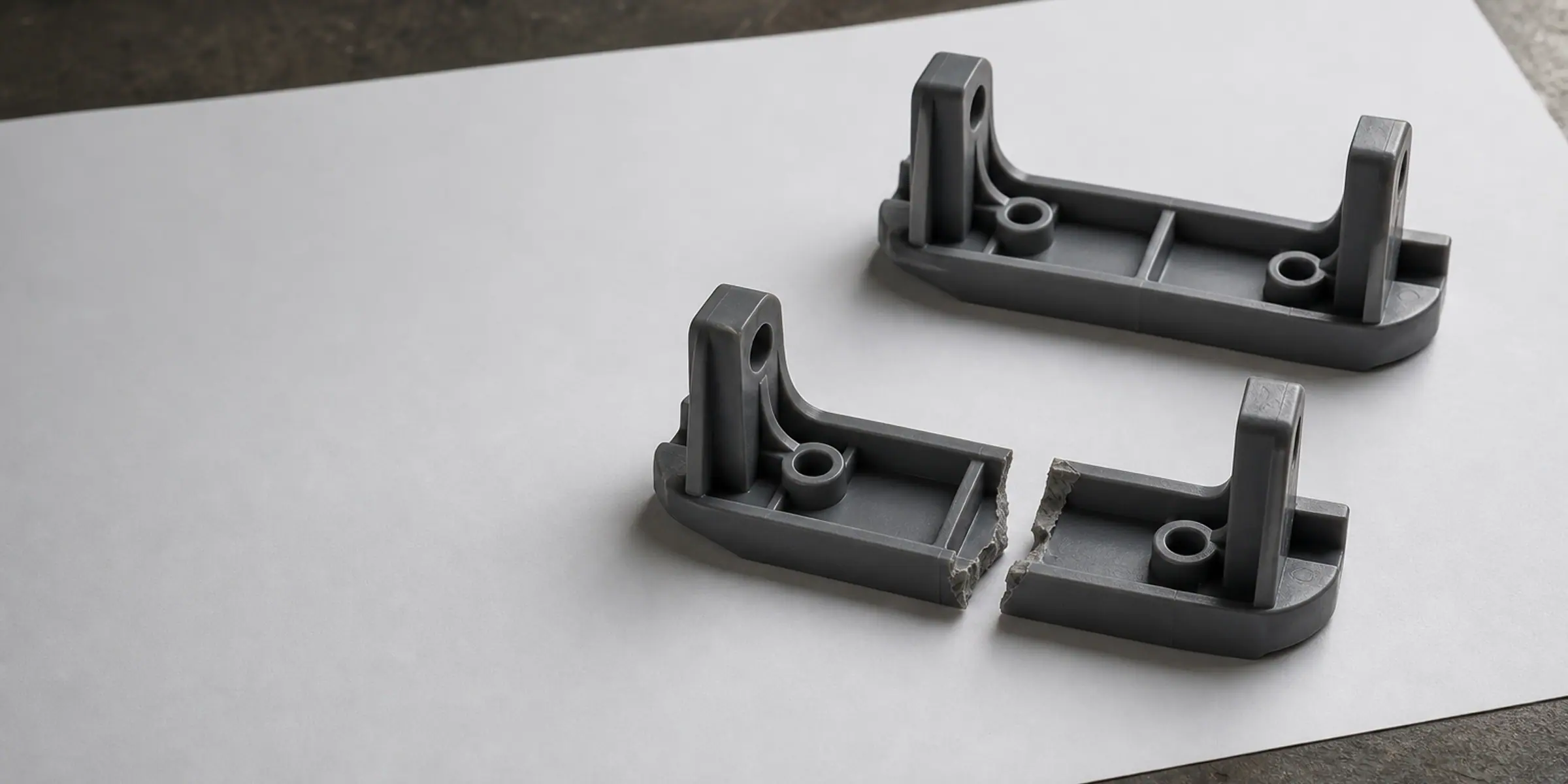
A file that will not slice is usually not a broken design — it is a broken surface. Missing triangles, edges shared by three faces, inverted normals and walls with no thickness are the four problems behind most failures, and all four can be found and corrected. Send the file as it is, plus a note about what your slicer said: the message, the file type, and whether the problem shows up in the preview or only in the finished print. If the geometry is also wrong — a dimension that has to change, a wall that keeps cracking — say that at the same time, because repair and redesign are quoted as one job rather than two. Nothing is deleted or rebuilt before you approve the result.
What actually breaks a file
Printers do not read a design, they read a surface. If that surface has a gap, the slicer cannot decide which side is solid, and it either fills the wrong region, wraps a shell around a wall of no thickness, or refuses the file outright. The same happens when two triangles face the wrong way: the inside and the outside of the model swap, and the print comes out hollow or inside out.
Most broken files come from a conversion rather than from modelling. A scan, an export from a game asset, a model downloaded and re-saved through three tools, or a mesh that was scaled to zero in one axis will each produce the same class of defect. That is useful to know, because it means the original shape is often intact and the repair is about the surface, not about starting again.
You can diagnose most of it in two minutes
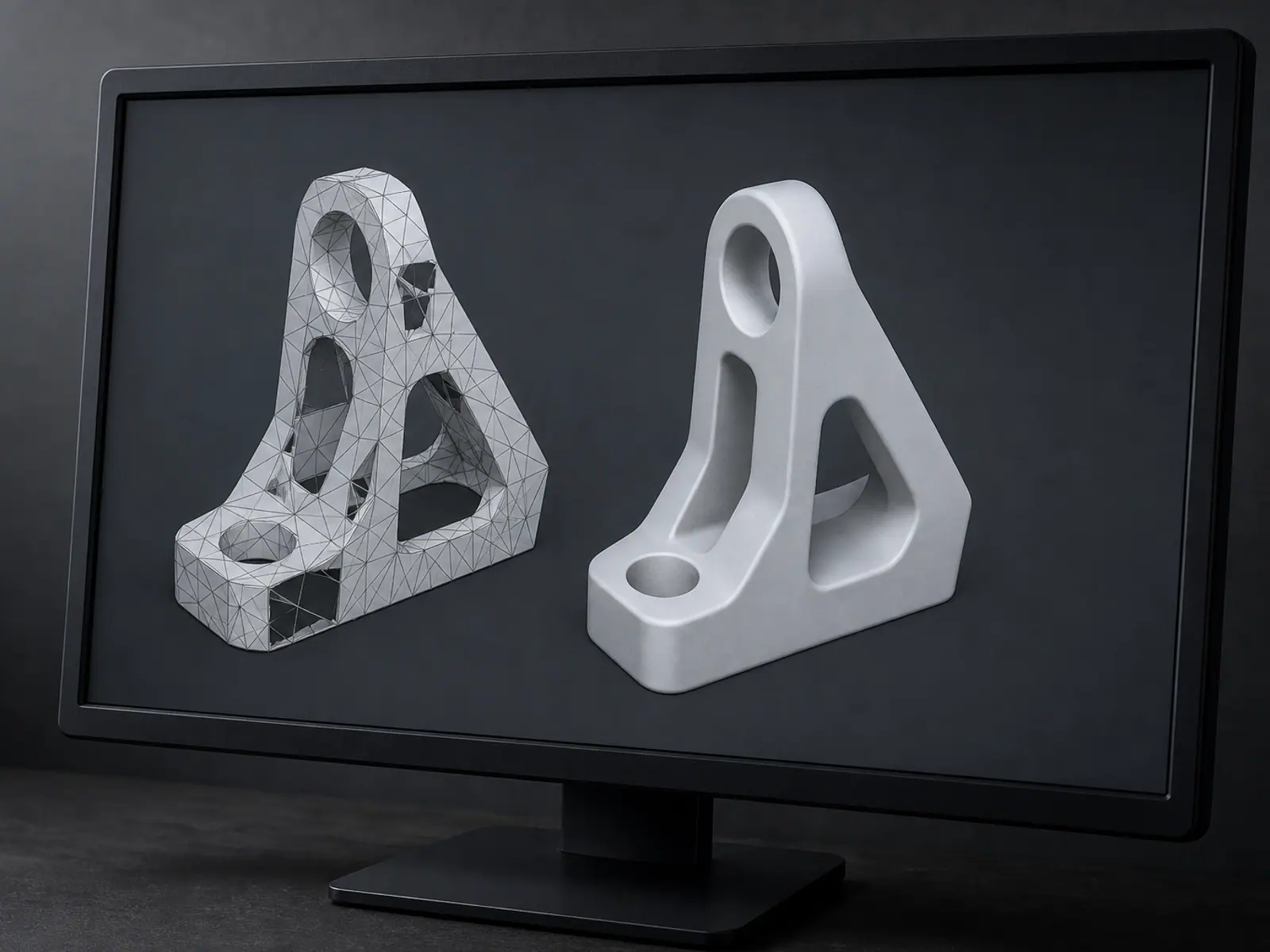
- Drop the file into your slicer and look at the preview layer by layer. Missing walls, red-highlighted areas and regions that vanish when you scroll through layers are all defects, not display artefacts.
- Copy the exact message the slicer gives you, including the count of non-manifold or open edges if it reports one.
- Check the file size and unit. A model that arrived far smaller than expected was often exported in a different unit, which is a scaling problem rather than a repair problem.
- Screenshot the preview from the angle where the defect is clearest, and send that with the file.
- Note whether a similar print has already failed once, and on which feature. A part that breaks in the same place twice is usually a thickness problem, and the repair should change the geometry rather than only close the holes.
What the repair covers, and where the limit is
Repair is a defined job with a defined result: the mesh becomes closed, correctly oriented and printable at the size you specify. It is not a redesign, and it does not add features the original never had. Where the file needs more than that, we say so before starting and quote it as a rebuild instead.
Defect, and what the fix involves
| What the slicer reports | What it usually is | What the fix involves |
|---|---|---|
| The model is not watertight | Missing triangles or open boundary edges | Boundaries found and closed, then the volume checked layer by layer |
| Non-manifold edges | An edge shared by three or more faces, typical of merged or scanned geometry | Offending faces separated or removed, then the surface rebuilt as one closed shell |
| Inverted or flipped normals | Faces pointing inward, so the slicer sees the inside as solid | Orientation recalculated across the whole mesh, not only on the visible faces |
| The part prints hollow or paper thin | Zero-thickness walls, so the surface has no volume to fill | Walls given real thickness for the material and nozzle, and the change reported to you |
Repair is not the same thing as making it printable
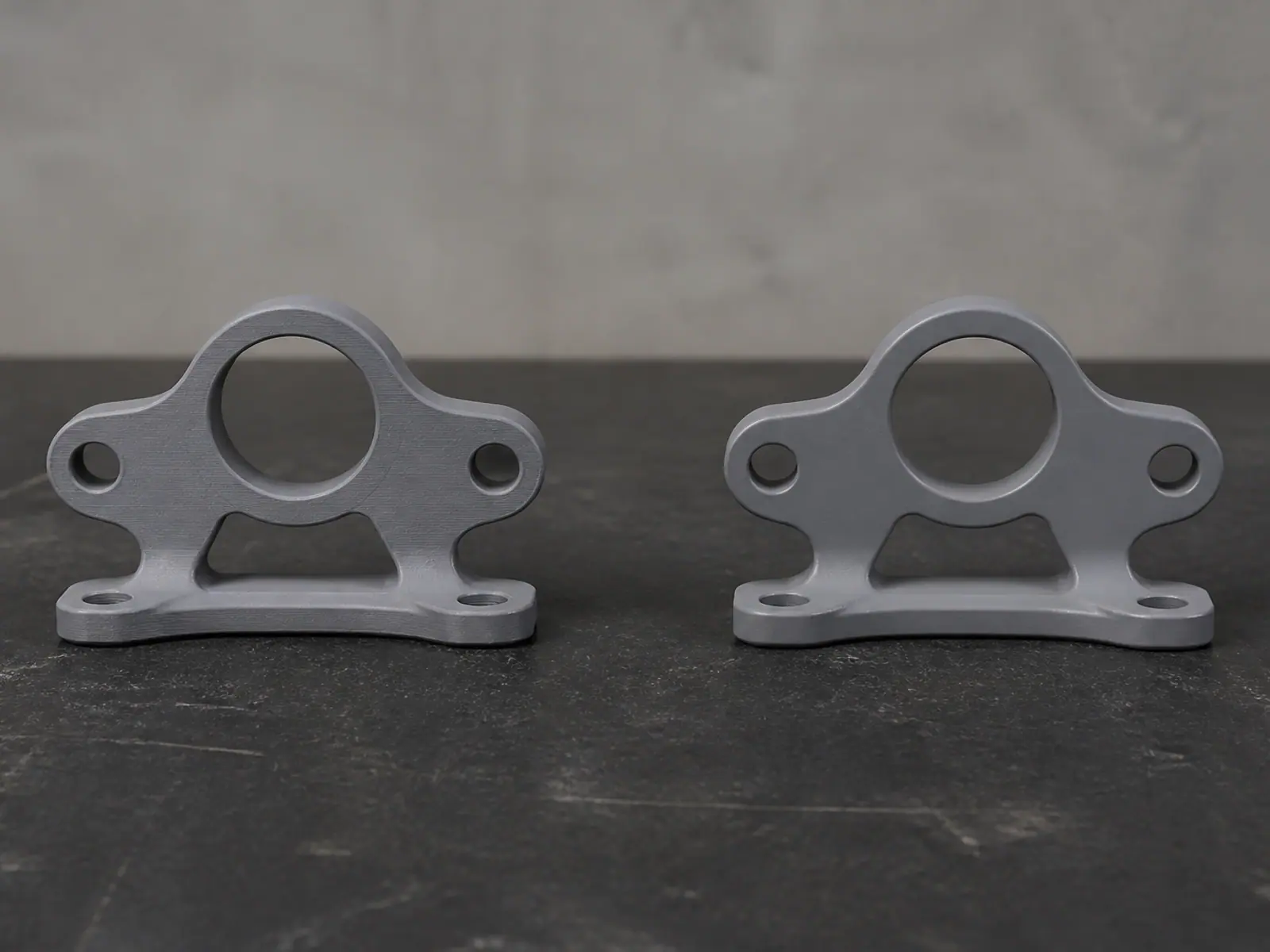
A file can be structurally perfect and still print badly. Once the mesh is sound, we check the things that decide whether the printed part is usable, because a repair that only closes holes leaves you with a clean file that fails the same way it did before.
- Wall thickness measured against the nozzle, so thin walls become a stated decision rather than a surprise.
- Orientation chosen so the load path runs along the layers, not across them.
- Hole sizes adjusted for the way printed holes come out slightly undersized, so fasteners still fit.
- Support considered while the file is open, because a well-oriented model can remove most of it.
- A note on which features are critical and which are cosmetic, so the second version is corrected in the right order.
What comes back, and in what state
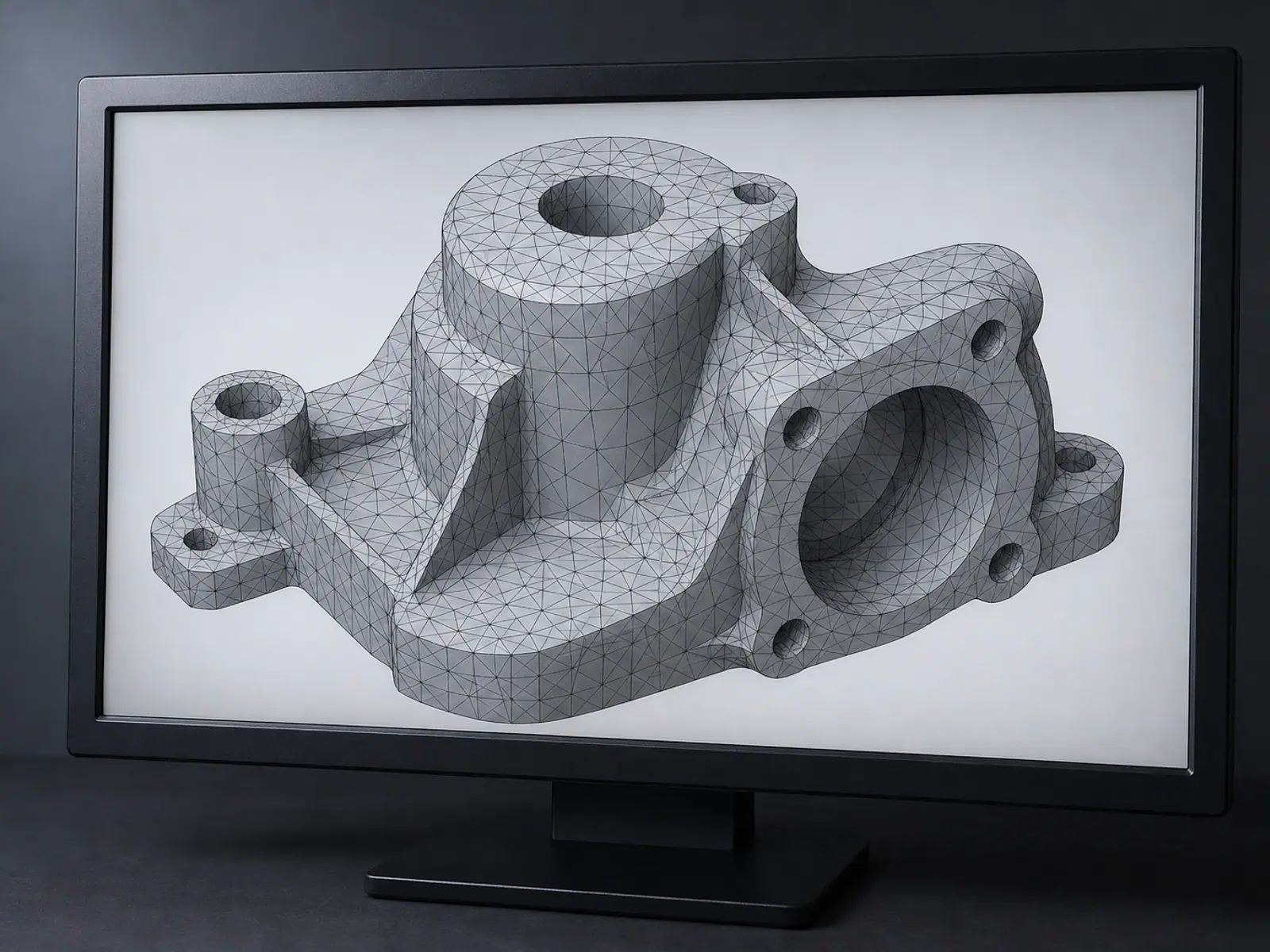
You get the repaired mesh as STL or 3MF, closed and oriented, plus a short written list of what was changed and what was left alone. If the original had a deliberate gap or an open shell as part of its shape, tell us at the start, because closing it would be wrong.
Where the mesh is beyond saving — for example a scan that lost an entire face, or a mesh so decimated that the bores are no longer round — we say so instead of returning a patched file that still fails. The alternative is rebuilding the part as solid CAD from measurements, which is a different scope and is quoted as such.
Send the file before you describe the problem. Five minutes looking at the geometry usually tells us more than a page of description, and the diagnosis comes back with the reply.
Related services
Frequently asked questions
Frequently asked questions
My STL will not slice. Is it definitely repairable?
What does the slicer message actually tell you?
Can you repair a file without changing its shape?
Do you fix the model or send me a new one?
The part also cracked after printing. Can you fix that too?
Can you make a file printable at a different size?
Repair the Mesh, Keep the Model.
A file that will not slice is usually not a broken design — it is a broken surface. Missing triangles, edges shared by three faces, inverted normals and walls with no thickness are the four problems behind most failures, and all four can be found and corrected. Send the file as it is, plus a note about what your slicer said: the message, the file type, and whether the problem shows up in the preview or only in the finished print. If the geometry is also wrong — a dimension that has to change, a wall that keeps cracking — say that at the same time, because repair and redesign are quoted as one job rather than two. Nothing is deleted or rebuilt before you approve the result.